Comics reading setup: Kavita, Panels, CDisplayEx
Escaping the walled gardens. A guide to self-hosting a comic server on Synology without losing your mind over Docker permissions.
I like owning my data. I do not like subscription services telling me how to read the files I already possess.
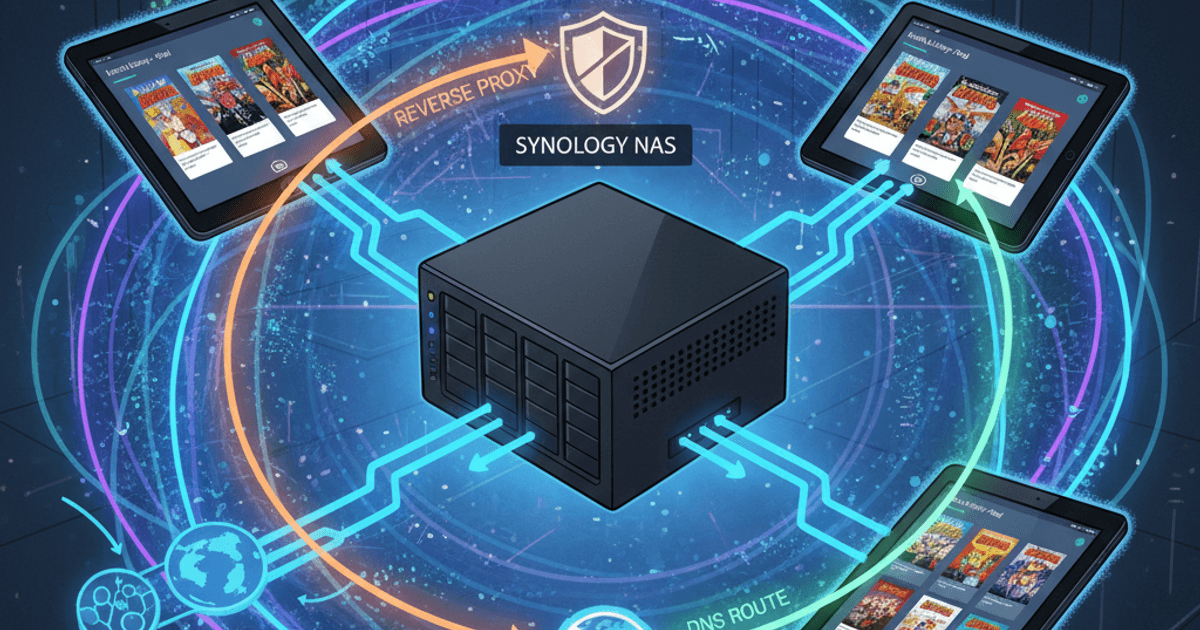
Today, I built a self-hosted comic reading stack that actually works. It serves my library from a Synology NAS to any device in the world, secured with SSL, and integrated with the best readers on the market. Here is how it’s done, and the traps you need to avoid.
The Core: Kavita on Docker
I chose Kavita because it is fast, lightweight, and supports OPDS (Open Publication Distribution System). But installing it on Synology is not as “click-and-play” as the package center wants you to believe.
The Port 5000 Trap
Kavita defaults to port 5000. Synology DSM also lives on port 5000. If you try to map 5000:5000 in Docker, the container will die, and your NAS will complain.
The Fix: Map external port 5471 to internal 5000.
The Permission Nightmare
Synology permissions are draconian. The Docker container runs as a specific user, but the files are owned by your admin user. This leads to the infamous “Zombie Database” issue:
- The container tries to create
kavita.db. - It fails halfway due to permissions.
- It leaves a corrupted 0-byte file.
- Even after fixing permissions, the app hangs forever trying to read the dead file.
The Solution:
SSH into the NAS and force ownership of the config folder to the user ID the container uses (usually 1026 on Synology):
sudo chown -R 1026:100 /volume1/docker/kavita
If you already bricked it, delete the contents of the config folder and restart. Do not waste time debugging a corrupted SQLite file.
The Network: Reverse Proxy & Split Horizon
Accessing 192.168.1.x:5471 is fine for the couch, but useless when I am out. Opening raw ports is amateur hour.
The Reverse Proxy
I used Synology’s built-in Reverse Proxy to map comics.mydomain.com (HTTPS/443) to localhost:5471 (HTTP). This allows me to use a valid Let’s Encrypt certificate. No SSL warnings, no exposed non-standard ports.
The “Split Horizon” Trick
Here is the piece most people miss. If you use your public domain while sitting at home, your traffic goes out to the internet and bounces back (NAT Loopback). It is slow and unnecessary.
I added a DNS Rewrite in AdGuard Home:
- Domain:
comics.mydomain.com - Target:
192.168.1.x(Local NAS IP)
Now, the URL resolves to the local IP when I am home (Gigabit speed) and the public IP when I am not.
The Clients: Apple vs. Reality
The server is useless without a good reader. This is where the ecosystem divide becomes painful.
iOS: The “Panels” Tax
On iOS, Panels is the only serious contender. However, it is typical Apple ecosystem software: polished, but expensive.
- The Problem: Kavita is “dumb”—it just serves the file. It does not know how to do “Guided View” (zooming panel-by-panel).
- The Fix: You have to buy Panels Premium (lifetime unlock) to get their AI-driven “Sensei” engine. It works, but it hurts to pay for a feature that should be standard.
- The Setup: Connect via OPDS.
- Warning: The standard login fails on iOS because Panels creates malformed XML requests.
- Bypass: Use the API Key URL from your Kavita user dashboard (
/api/opds/YOUR_KEY). This bypasses the login screen entirely.
Android: CDisplayEx
On Android, we have CDisplayEx. It just works. It supports OPDS natively, handles the login handshake correctly without API key hacks, and renders everything perfectly. If you are on Android, use this.
Conclusion
The stack is stable.
- Server: Kavita (Docker)
- Security: SSL via Reverse Proxy
- DNS: Split Horizon via AdGuard
- Reader: Panels (iOS) / CDisplayEx (Android)
It took fighting with Docker permissions and paying the “Apple Tax,” but I now have my entire library available everywhere, with panel-by-panel reading, owned and hosted by me.